Proxmox Ubuntu Server Setup
Download the ISO
First we need to download the ISO file
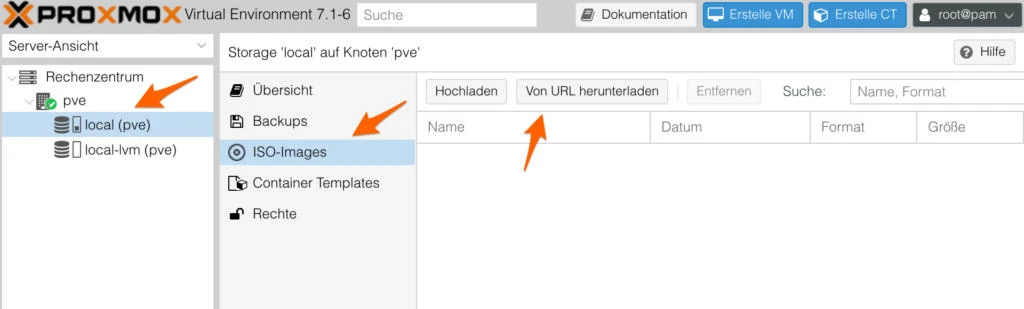
Open your Webinterface and go to
- Your Node
- Select the storage “local”
- Select ISO Images
- Download from URL
- Enter "
https://releases.ubuntu.com/24.04.3/ubuntu-24.04.3-live-server-amd64.iso " - Press Query URL and Start the Download
Create the VM
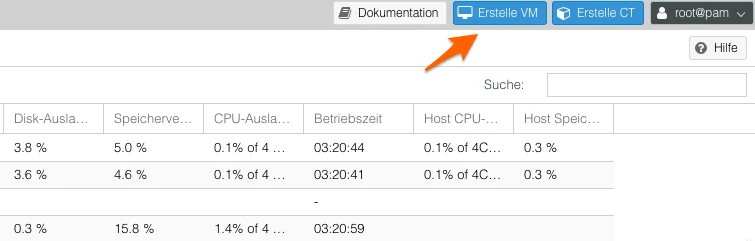
First we create the VM. Give it a nice name like
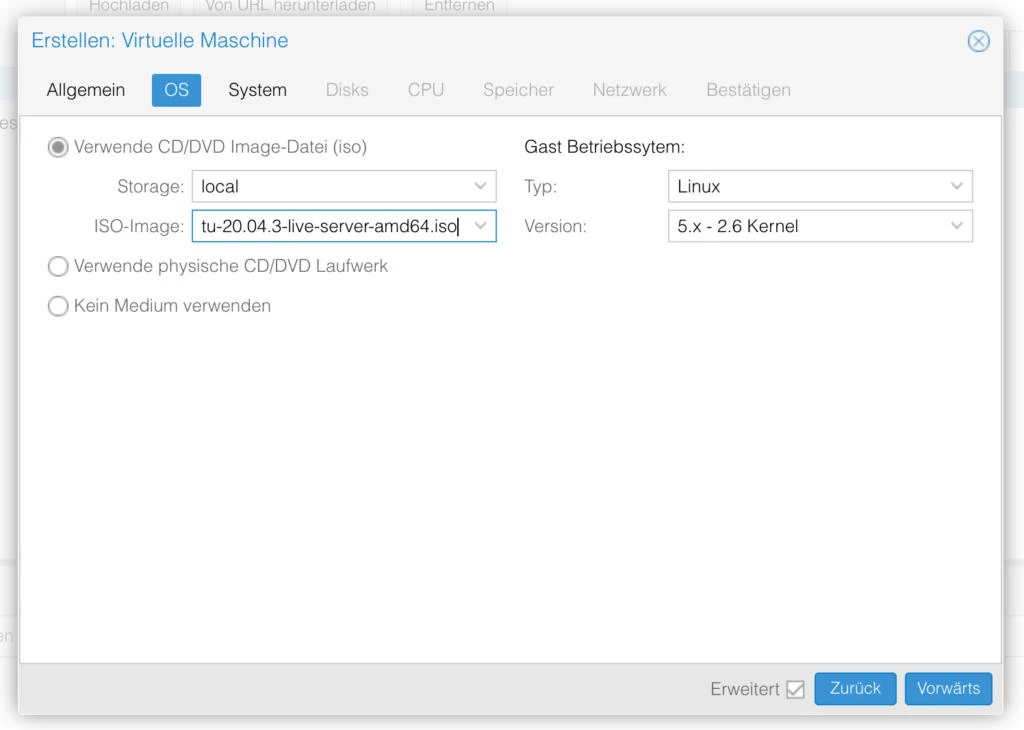
In the next tab you can select the ISO image we just downloaded.
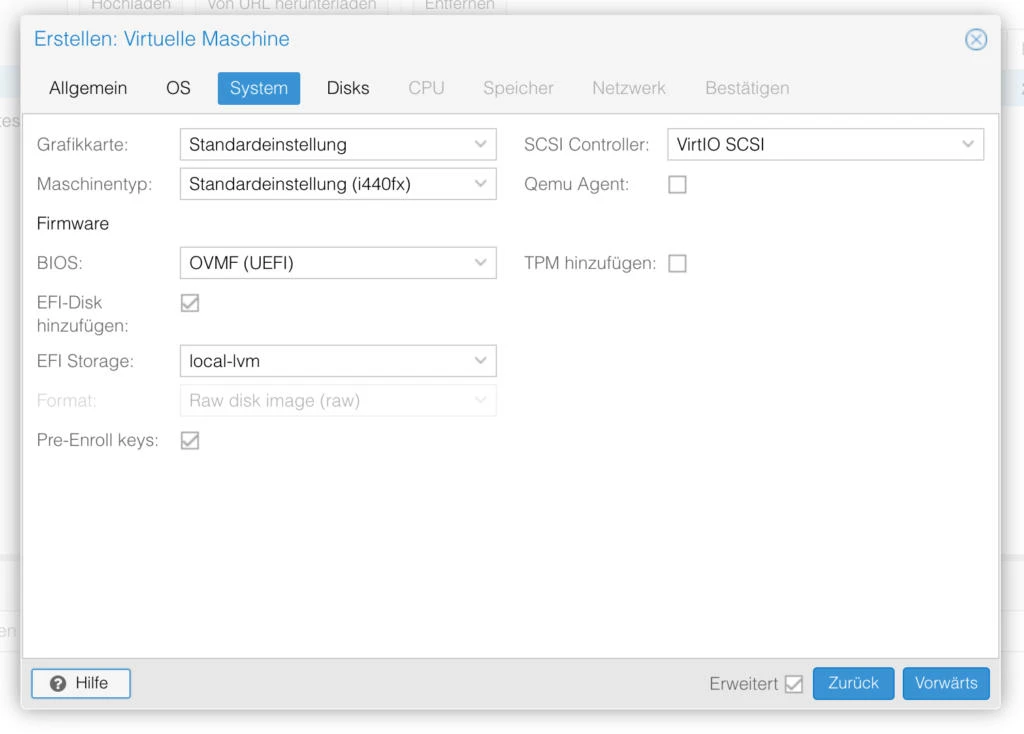
Settings for the System Tab
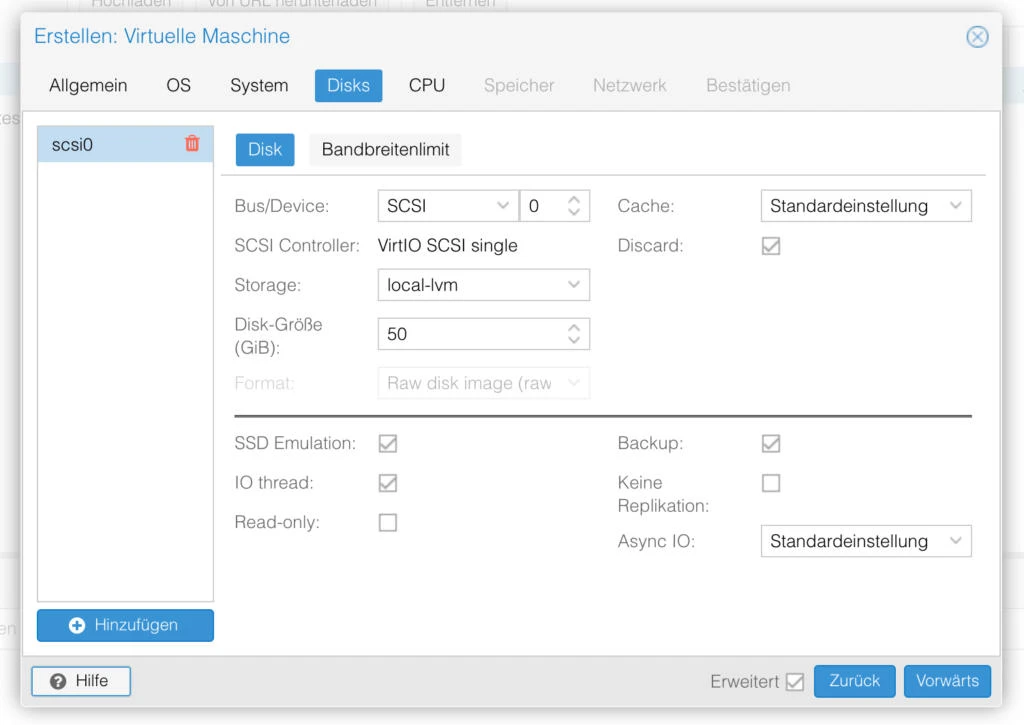
Settings for the Disks Tab - I personally used 100GB
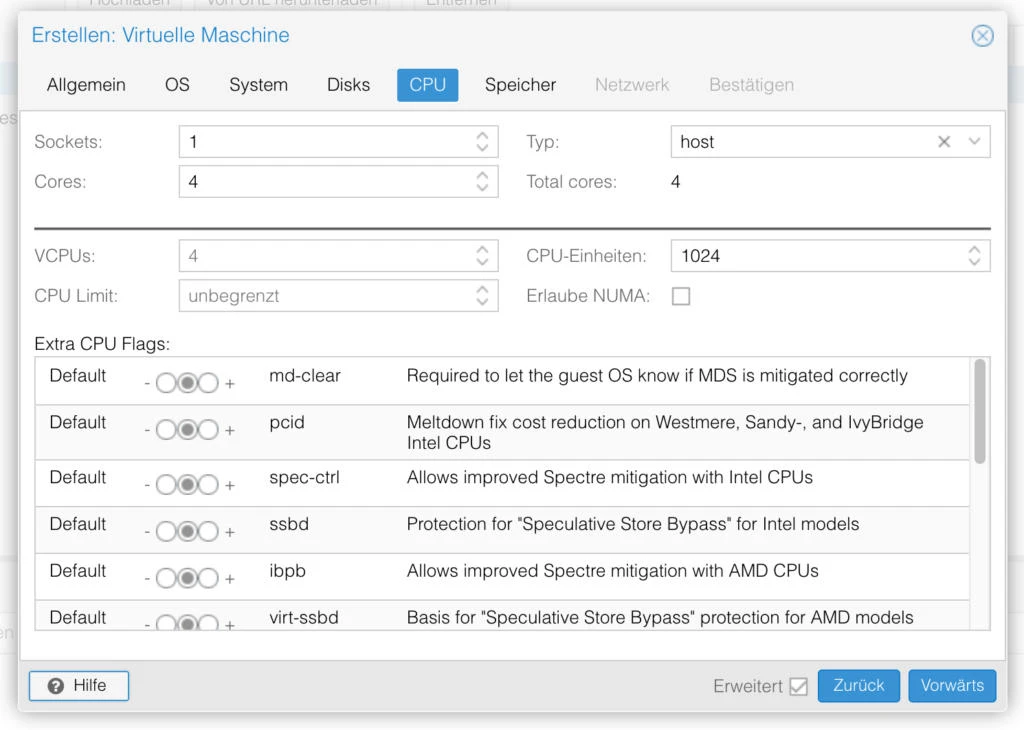
Settings for the CPU tab - I used 4 Cores
Settings for the Memory Tab - I used 9216 MiB and 6144 MiB

Now you just have to
Post Install Steps
Prepare for VM Usage
The obvious first step would be to
Then we have to setup Ubuntu for VM usage.
Update all
Install VM Tools
Change Grub Handling
And edit these lines to
Apply the config and restart
Install Guest Agents
Install with
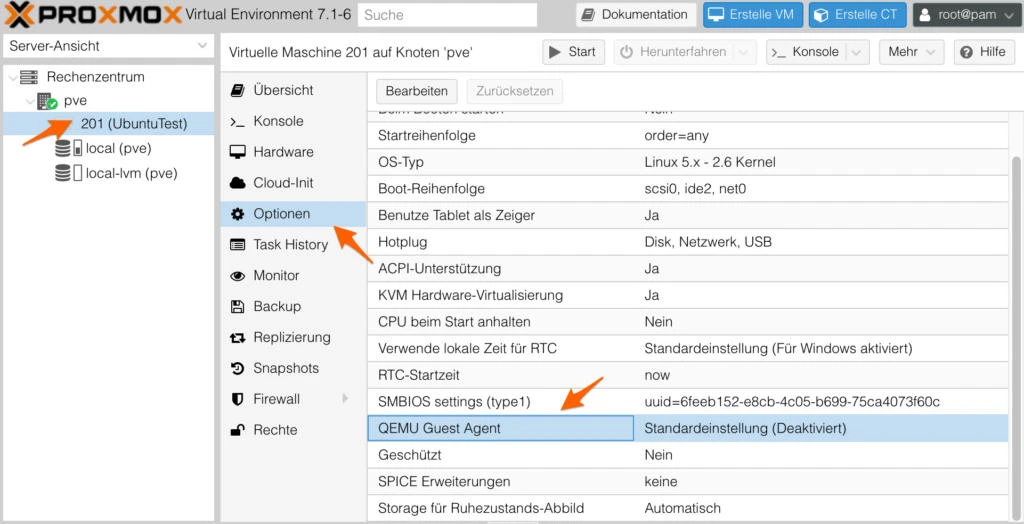
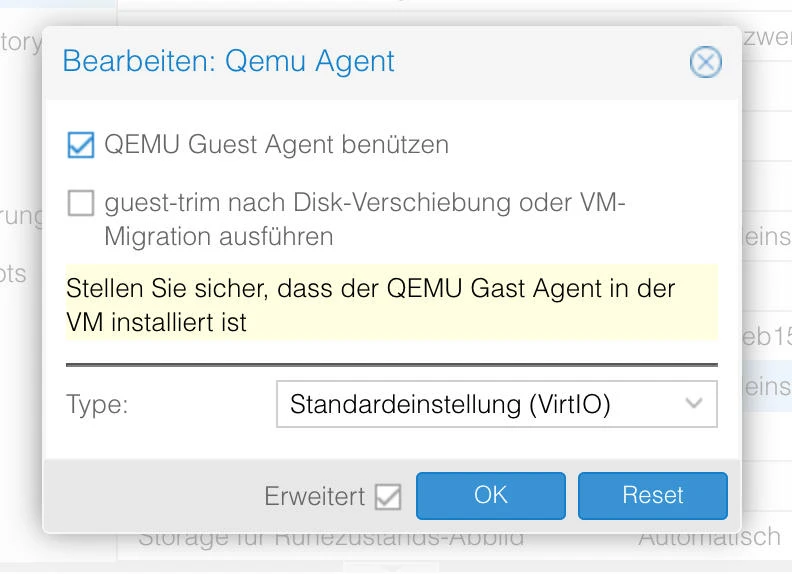
In proxmox GUI edit
Now reboot the VM
Netplan Config
Edit the config using
When entering the template, please
Now reload the config - your
Increase the Size of the Disks after install
If you realise that you are
First you resize the disk size from the Proxmox gui and then you have to run these commands.
Check which disk you have - the one that mounts
Grow the partition - replace with your drive
Tell LVM the new size - replace with your drive
Extend your Logical Volume - first View which one
Resize it - please use the device from
Resize the filesystem
Check your new disk size