Reverse Proxy Setup
Nginx Proxy Manager Setup
Lets setup Nginx Proxy Manager. You can use this
If you create this container, the Web-Interface will be available at
The initial user mail will be
Proxy your first container
For this example we will proxy
The magic happens at the very end. By adding
at the very end, we are telling docker that there will be a network somewhere which is called "
In the container config itself. It is also adviced to give your container a proper name so we can idetify it by hostname laster on. This is done with
After all this is setup we can jump into the
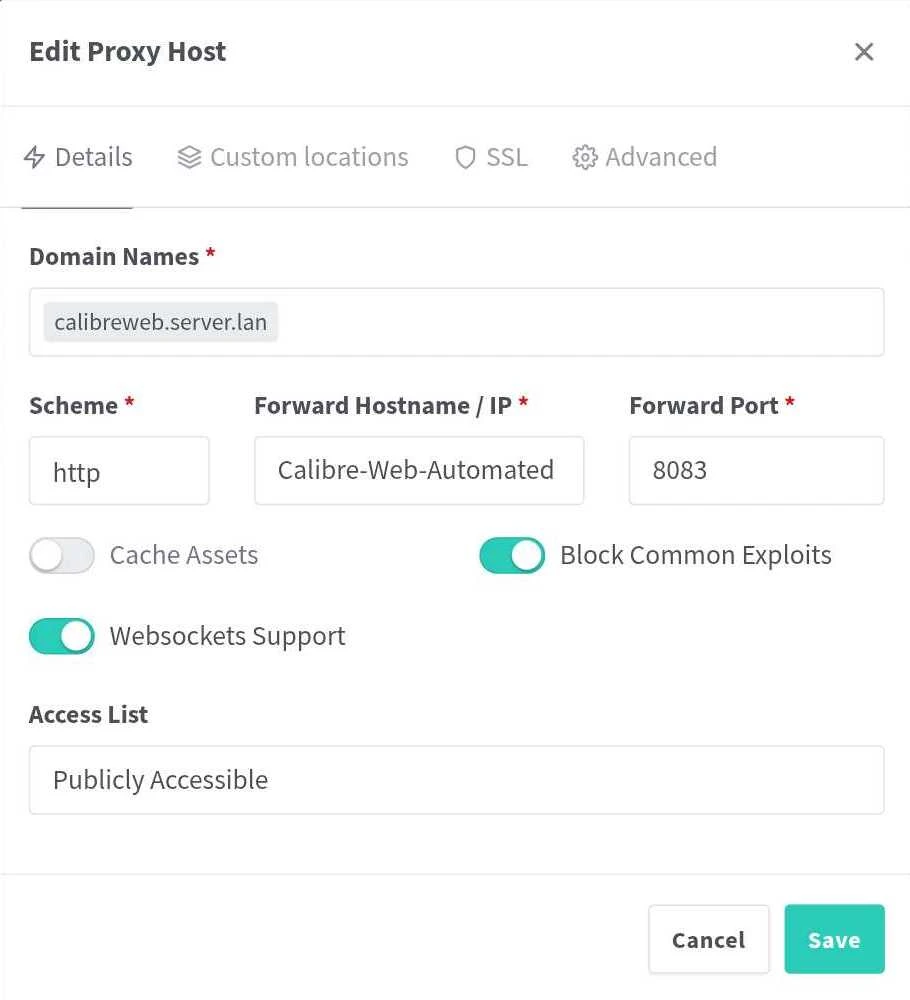
I picked the hostname
Settings
- For Domain Names you enter name you want as a sub-domain of your host.
- For the scheme you choose whatever your service uses for its Interface, here it is http
- For the hostname you can choose the
container_name you entered before - The Port will be just what the Interface uses again, here it is 8083
- You can always enable "Block Common Exploits" cause why not
- Make sure to enable Websockets if you App needs them
- The other tabs can be left as is
Now just go ahead and save your work. The Interface of Calibre-Web-Automated should now be accessible at